
Building a Low-Power Home Server with a Raspberry Pi 4 and SSD
A practical guide for hobbyists who enjoy tinkering with hardware and small servers.
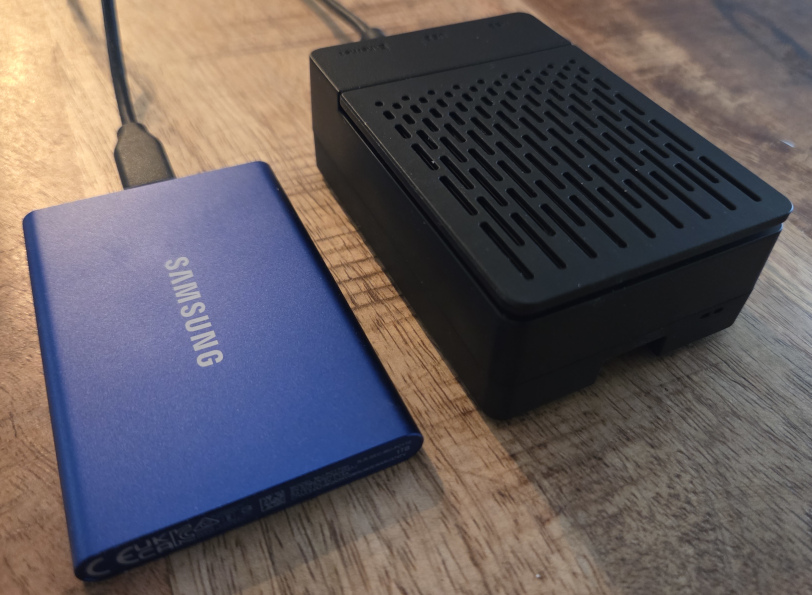
Why We Chose a Raspberry Pi 4 + Samsung SSD
When we started looking for a small, energy-efficient home server, the Raspberry Pi 4 quickly became the most logical choice. Its strengths make it ideal for 24/7 operation:
✔ Very low power consumption
A typical 10-year-old Intel i3 PC uses around 30–40 watts idle.
A Raspberry Pi 4, even with a USB 3.0 SSD attached, usually sits between 4–7 watts.
Over a year, that difference adds up significantly.
✔ Almost no heat output
The Pi 4 barely gets warm, especially when cooled passively with a small heatsink.
A desktop PC produces far more heat — and heat is the enemy of electronics.
✔ SSD reliability and speed
We chose a Samsung Portable SSD T7 because:
- it’s fast (up to 1,000 MB/s)
- it’s reliable (Samsung controllers are known for longevity)
- it runs cool
- it works perfectly with the Pi’s USB 3 ports
This combination gives you desktop-class storage performance without noise, heat, or a high energy bill.
Project Goals
Before building anything, it’s useful to know what the server is for.
Our goals were simple but practical:
1) Easy file sharing between Windows and Linux
We wanted a central location where every PC in the house — Windows or Linux — could read and write files.
Samba (SMB) is perfect for this: it works with all major operating systems, it’s easy to configure, and it integrates nicely into home networks.
2) Running a TNFS server for retro computers
A more niche requirement:
We wanted to connect retro computers (Atari ST / Spectrum Next / etc.) to a modern network using TNFS — a lightweight filesystem protocol used by projects like FujiNet.
This allows vintage machines to:
- mount network drives
- load software directly from the TNFS server
- share data with modern systems
TNFS will be explained in detail in a separate article — including the electronics that bridge old hardware to modern networks.
3) A small general-purpose fileserver
Besides Samba and TNFS, this Pi would also act as a lightweight home server for:
- storing documents
- hosting small projects
- centralizing backups
- experimentation with web services
The idea was to build a flexible and reliable "mini-NAS" with minimal cost and minimal complexity.
What We Installed (and Why)
Here’s what currently runs on the server:
✔ Samba
Purpose: cross-platform file sharing between Windows and Linux.
Why: it just works, and it’s compatible with every modern OS.
✔ LAMP stack (Linux + Apache + MySQL/MariaDB + PHP)
Purpose: hosting a small local website and experimenting with server development.
Why: lightweight, powerful, and easy to install on Raspberry Pi OS.
✔ A custom website
Purpose: a personal documentation space and project hub.
✔ SSH
Purpose: remote access for updates, configuration, and maintenance.
Why: essential for headless servers — no monitor or keyboard needed.
✔ TNFS server
Purpose: providing files and software to vintage computers.
Why: TNFS is incredibly light, fast, and perfect for retro hardware.
We’ll cover the website and TNFS server setup in dedicated articles.
Why We Avoided an SD Card
SD cards are convenient, but not great for long-term server use:
- they wear out quickly under constant read/write
- they’re far slower than SSDs
- they can become corrupted easily after power outages
- they have poor random I/O performance, which servers rely on
A USB-attached SSD fixes all of this.
Formatting the SSD (EXT4)
We formatted the SSD as EXT4, the native Linux filesystem.
Why EXT4?
- reliable and stable
- excellent performance
- proper permissions support
- journaling (protects against unexpected shutdowns)
Although the SSD arrived formatted as NTFS, it’s far better to reformat it to EXT4 for Linux-only use.
Installing the OS Using Raspberry Pi Imager
There are two easy ways to prepare the SSD:
1) Format directly from Linux
You can format the SSD to EXT4 using tools like:
sudo mkfs.ext4 /dev/sdX